1
Upload a flowchart image
Upload a screenshot, whiteboard photo, scan, or exported flowchart image.
Upload a screenshot, whiteboard photo, or old flowchart image and rebuild it into an editable flowchart you can clean up, refine, and export.
Supported inputs
Before and after
Upload a screenshot, PDF page, whiteboard photo, or old diagram image. ChatFlowchart rebuilds the visible structure into editable shapes, labels, and connectors.
Before
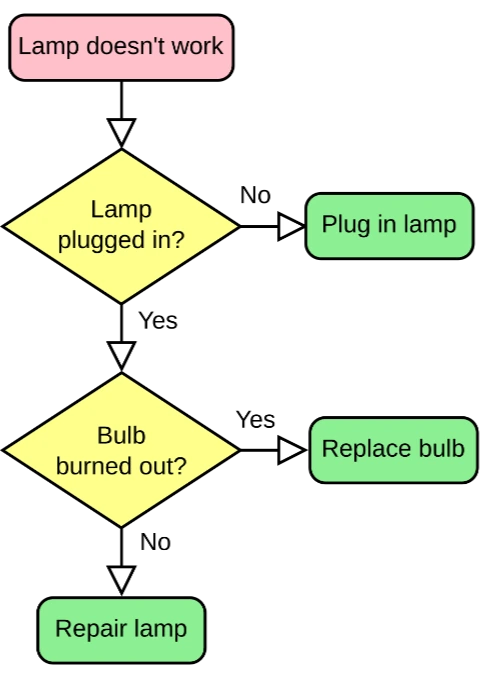
Static pixels, hard to update
After
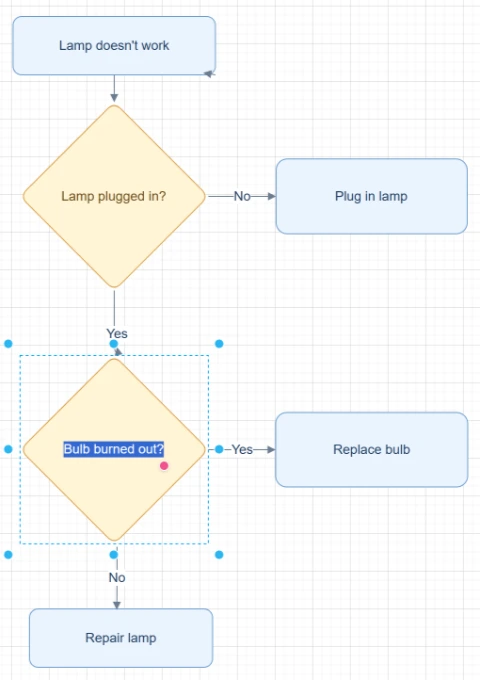
Editable objects you can review
Best for clear diagrams with visible labels, boxes, and arrows. Review blurry text or dense layouts before export.
Convert Image to FlowchartStart with the source file, let AI rebuild the visible structure, then review the editable result on canvas.
Upload a screenshot, whiteboard photo, scan, or exported flowchart image.
ChatFlowchart analyzes the visible text, boxes, decision nodes, arrows, and layout to create an editable draft.
Review the generated flowchart on canvas, fix any details, improve the layout, and export a clean version.
Editable result
ChatFlowchart rebuilds the visible diagram as editable diagram objects, so the output can be reviewed and refined instead of staying locked inside a flat image.
Review and edit the visible text labels after the diagram is rebuilt.
Move, resize, add, or remove process boxes, decision nodes, and other diagram elements.
Reconnect arrows, adjust flow direction, and fix unclear branches when needed.
Clean up spacing, alignment, grouping, and reading order on the editable canvas.
Apply sketch or modern styling before exporting the final diagram.
Use cases
Each converter page focuses on a specific output goal, so you can start with the format or workflow you need.
Turn product, document, slide, or workflow screenshots into editable flowcharts.
Convert workshop whiteboard photos into clean editable process diagrams.
Rebuild readable hand-drawn flowcharts as editable digital diagrams.
Update legacy SOP diagrams without manually redrawing every box and arrow.
Convert clear screenshots from static documents and presentations into editable flowcharts.
Convert support, onboarding, or troubleshooting decision trees into editable flows.
Details
An image to flowchart converter helps turn a static diagram image into an editable flowchart. Instead of keeping the upload as a flat picture, ChatFlowchart rebuilds the visible steps, labels, decisions, and arrows on an editable canvas.
This is useful when you only have a screenshot, whiteboard photo, scan, or exported PNG/JPG file but need to update the process again.
Use ChatFlowchart for screenshots from documents, whiteboard photos from meetings, scanned SOP diagrams, or old exported flowchart images. The clearer the labels and connectors are, the easier it is to rebuild a usable flowchart draft.
After conversion, you can review the structure, correct any recognition mistakes, and adjust the layout directly on the canvas.
Static flowchart images are hard to maintain because every text change, arrow update, or new step requires manual redrawing. Rebuilding the image as editable flowchart objects gives you a faster starting point.
You can refine labels, move shapes, reconnect arrows, and export the updated flowchart for documentation, presentations, SOPs, or team workflows.
For best results, upload high-resolution images with readable text, visible arrowheads, clear boxes, and enough spacing between elements. Screenshots and exported diagrams usually work better than blurry photos.
For whiteboard photos or hand-drawn flowcharts, shoot straight on, avoid glare, and make sure arrows and labels are easy to read before uploading.
Manual redrawing may be fine for a small diagram, but it becomes slow when you need to recover legacy process documentation, digitize workshop notes, or update old SOP diagrams.
AI conversion gives you an editable first draft so you can focus on reviewing the process and improving the diagram instead of starting from a blank canvas.
Results and quality
Images, screenshots, whiteboard photos, and PDF uploads are supported. Text-based PDFs can be extracted directly, while scanned PDFs work best when the diagram, labels, and arrows are clearly visible.
Export availability follows the current ChatFlowchart canvas export options.
Continue from the converted diagram without rebuilding the file.
Continue refining the rebuilt diagram with manual edits or AI chat.
Export the finished diagram as PNG, SVG, PDF, Draw.io, Mermaid, or a shareable link when available.
Ask ChatFlowchart to rename labels, adjust steps, clean up layout, or correct arrows.
Mark whether the result looks good or needs cleanup so weak inputs are easier to diagnose.
FAQ
Upload a screenshot, whiteboard photo, or old process image and start editing the rebuilt flowchart on canvas.