pdf to drawio

PDF to Draw.io Converter

Upload a PDF diagram and rebuild the visible boxes, labels, connectors, and layout into an editable Draw.io-compatible diagram.

Rebuild static PDF diagrams when the original Draw.io, .drawio, or diagrams.net source file is missing.
Creates new editable diagram objects instead of claiming to recover hidden source metadata.
Edit the rebuilt diagram on a clean canvas, then export it for Draw.io or diagrams.net workflows.
PNGJPGJPEGWEBPGIFPDF

Drop a PDF diagram, page screenshot, PNG, JPG, or WEBP here.

Images: JPG, PNG, WEBP, GIF up to 5 MB. PDFs: up to 150.0k extracted chars.

Opens the editable canvas with Modern Style selected.

1

Upload the PDF diagram

Use a static PDF export, page screenshot, or diagram image when the editable Draw.io source file is gone.

2

AI rebuilds visible objects

ChatFlowchart reconstructs boxes, connectors, labels, and layout as a new editable diagram.

3

Export for Draw.io workflows

Review the rebuilt diagram, adjust the layout, and export it for Draw.io or diagrams.net editing when available.

Editable result

What you can edit after conversion

ChatFlowchart rebuilds the visible diagram as editable diagram objects, so the output can be reviewed and refined instead of staying locked inside a flat image.

Labels

Review and edit the visible text labels after the diagram is rebuilt.

Shapes

Move, resize, add, or remove process boxes, decision nodes, and other diagram elements.

Connectors

Reconnect arrows, adjust flow direction, and fix unclear branches when needed.

Layout

Clean up spacing, alignment, grouping, and reading order on the editable canvas.

Style

Apply sketch or modern styling before exporting the final diagram.

Before and after

See what files can be rebuilt into editable diagrams

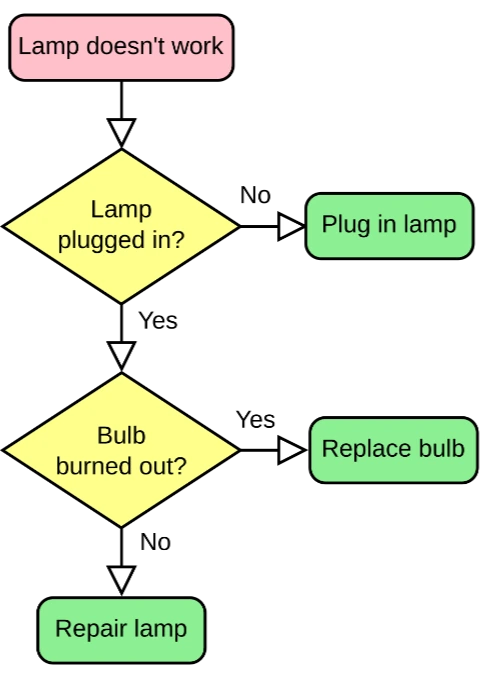
Static Draw.io PDF export before conversion
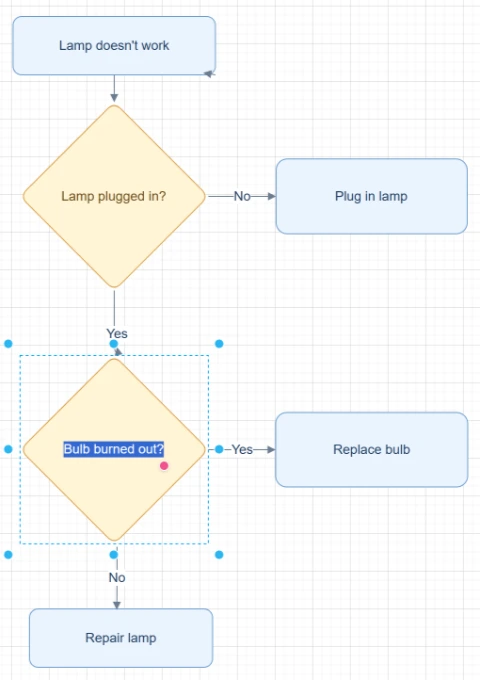
Draw.io-compatible editable diagram after conversion

Lost Draw.io PDF export

Rebuild a static Draw.io PDF export when the original .drawio source file is missing.

Try with your file
PDF diagram before Draw.io conversion
Editable Draw.io-compatible diagram after conversion

PDF to editable Draw.io file

Turn a static PDF diagram into editable shapes and connectors for Draw.io or diagrams.net editing.

Try with your file
Network diagram PDF before conversion
Editable network diagram rebuilt from PDF

Network diagram PDF

Turn static network diagrams from legacy docs into editable objects for maintenance.

Try with your file

Use cases

Built for real diagram recovery workflows

Each converter page focuses on a specific output goal, so you can start with the format or workflow you need.

Lost source files

Rebuild a static PDF export when the original Draw.io, .drawio, or diagram source file is unavailable.

Architecture diagrams

Convert cloud, service, and system diagrams from PDF docs into editable structures.

Network diagrams

Recover router, service, and dependency diagrams from static exports.

PDF documentation updates

Recreate diagrams from old PDF manuals, reports, and exported documentation.

Confluence documentation

Rebuild diagrams from exported Confluence PDFs before updating team documentation.

Details

What to know before converting

PDF to Draw.io-compatible reconstruction

This workflow is for static PDF diagrams, screenshots, and exports where you no longer have the original editable file. ChatFlowchart creates a new editable diagram from the visible structure.

If a PDF contains embedded Draw.io source data, diagrams.net may be able to open it directly. ChatFlowchart focuses on the harder case: visible diagram recovery from static files.

PDF to Draw.io vs opening a Draw.io PDF directly

Some Draw.io PDFs may include embedded diagram data and can be reopened directly in diagrams.net. In that case, you should use the original editable data whenever possible.

ChatFlowchart is designed for static PDFs, scanned pages, screenshots, and exported documents where the editable source is missing. It rebuilds the visible diagram as new editable objects for a Draw.io-compatible workflow.

Review before using in Draw.io workflows

The generated diagram is a first draft. Review labels, connectors, grouping, and layout before exporting a Draw.io-compatible file or sharing the result.

For dense PDF pages, crop to a single diagram and use high contrast input to improve object reconstruction.

Supported inputs

PNGJPGJPEGWEBPGIFPDF text extraction

Supported outputs

Editable ChatFlowchart canvasPNGSVGPDFDraw.io FileMermaidShare link

Export availability follows the current ChatFlowchart canvas export options.

Results and quality

Supported outputs and best results

If a PDF was exported from Draw.io with embedded diagram data, diagrams.net may open it directly. For static, scanned, or image-style PDFs, ChatFlowchart rebuilds the visible diagram and may require review or cleanup.

Output
Free
Pro
Notes
Editable canvas
Yes
Yes
Core workspace for reviewing and refining the rebuilt diagram.
PNG
Watermarked
No watermark / high-res
Best for quick sharing, presentations, and visual documentation.
SVG
Limited
Yes
Best for scalable documentation, websites, and design handoff.
PDF
Limited
Yes
Useful for sharing the cleaned diagram as a document.
Draw.io File
Limited
Yes
Available for Draw.io-compatible editable diagram workflows.
Mermaid
Copy when available
Advanced export
Useful for Markdown, GitHub, Notion, and technical documentation workflows.

Best results checklist

  • Use clear images or PDF pages with readable labels.
  • Crop the upload to one diagram or one process when the source contains multiple unrelated charts.
  • Keep arrowheads, connector lines, and decision labels visible.
  • Use high-contrast screenshots or straight-on whiteboard photos.
  • Review labels, arrows, and branch directions before exporting the final diagram.
  • Use one clear PDF diagram per file or crop, with readable labels, visible connectors, and high contrast when preparing a Draw.io-compatible rebuild.

Limitations and cleanup

  • Dense diagrams may need manual cleanup after the first AI rebuild.
  • Blurred, cropped, or low-contrast text can reduce label accuracy.
  • Scanned PDFs and image-style PDFs work best when the target page is clear.
  • The result is a rebuilt editable diagram, not a recovery of hidden source metadata.
  • Connector direction, branch labels, and complex layouts may need review before sharing.
  • ChatFlowchart rebuilds visible PDF content; it cannot recover hidden Draw.io metadata from a static PDF.

After conversion

Open editable canvas

Continue refining the rebuilt diagram with manual edits or AI chat.

Export target files

Export the finished diagram as PNG, SVG, PDF, Draw.io, Mermaid, or a shareable link when available.

Fix with AI chat

Ask ChatFlowchart to rename labels, adjust steps, clean up layout, or correct arrows.

Report conversion quality

Mark whether the result looks good or needs cleanup so weak inputs are easier to diagnose.

Conversion feedback

After reviewing the rebuilt diagram, mark what worked or what needs cleanup so future conversions can improve.

FAQ

Questions before you upload

Can ChatFlowchart restore the original Draw.io file from a PDF?

No. ChatFlowchart rebuilds the visible diagram as new editable objects. It does not recover hidden original metadata from the PDF.

What if the PDF has embedded Draw.io data?

If embedded editable data exists, diagrams.net may open it directly. This page is for static PDFs, screenshots, and exports without accessible source data.

Is ChatFlowchart affiliated with Draw.io or diagrams.net?

No. ChatFlowchart provides a Draw.io-compatible workflow and is not affiliated with diagrams.net or Draw.io.

Can I export a .drawio file?

Use the editable canvas and the Draw.io file export path when available in the current export options.

Will complex PDF diagrams need cleanup?

Yes. Dense diagrams, tiny labels, crossed connectors, and low-resolution PDF pages can require review and manual cleanup after conversion.

What input gives the best result?

Use one clear diagram per file or crop, with readable text, visible connectors, high contrast, and minimal background noise.

Related converters

Choose the converter that matches your workflow

Image to Flowchart Converter

Upload a screenshot, whiteboard photo, or old flowchart image and rebuild it into an editable flowchart you can clean up, refine, and export.

Open converter

Image to Draw.io Converter

Upload a PNG, JPG, screenshot, whiteboard photo, or exported diagram image and rebuild it as an editable Draw.io-compatible diagram.

Open converter

Image to Excalidraw Converter

Upload a sketch, whiteboard photo, screenshot, or flowchart image and let AI rebuild the visible structure into an editable Excalidraw-style diagram.

Open converter

Screenshot to Flowchart Converter

Upload a screenshot of a workflow, app flow, slide process, SOP, or document diagram and rebuild it as an editable flowchart.

Open converter

Whiteboard to Flowchart Converter

Upload a whiteboard photo from a meeting, workshop, brainstorming session, or process mapping session and turn it into an editable flowchart draft.

Open converter

Hand-drawn Flowchart to Digital Converter

Upload a hand-drawn flowchart, paper sketch, notebook diagram, scan, or tablet drawing and turn it into an editable digital flowchart.

Open converter

PDF to Flowchart Converter

Upload a PDF process document, SOP, workflow page, or PDF diagram and turn it into an editable flowchart canvas.

Open converter

Image to Mermaid Converter

Upload a flowchart screenshot, diagram image, or PDF page and convert the visible structure into editable Mermaid code you can review, refine, and use in documentation.

Open converter

Image to Editable Diagram Converter

Upload a static diagram image, PDF page, screenshot, whiteboard photo, or old flowchart and rebuild the visible labels, shapes, arrows, and layout as editable diagram objects.

Open converter

Rebuild a PDF diagram for Draw.io workflows

Upload a static PDF diagram and create a new editable diagram you can review, clean up, and export.

Convert to Draw.io