1
Upload a PDF process page
Use a PDF process document, SOP, workflow page, or a clear scanned page image.
Upload a PDF process document, SOP, workflow page, or PDF diagram and turn it into an editable flowchart canvas.
Supported inputs
Before and after
Upload a screenshot, PDF page, whiteboard photo, or old diagram image. ChatFlowchart rebuilds the visible structure into editable shapes, labels, and connectors.
Before
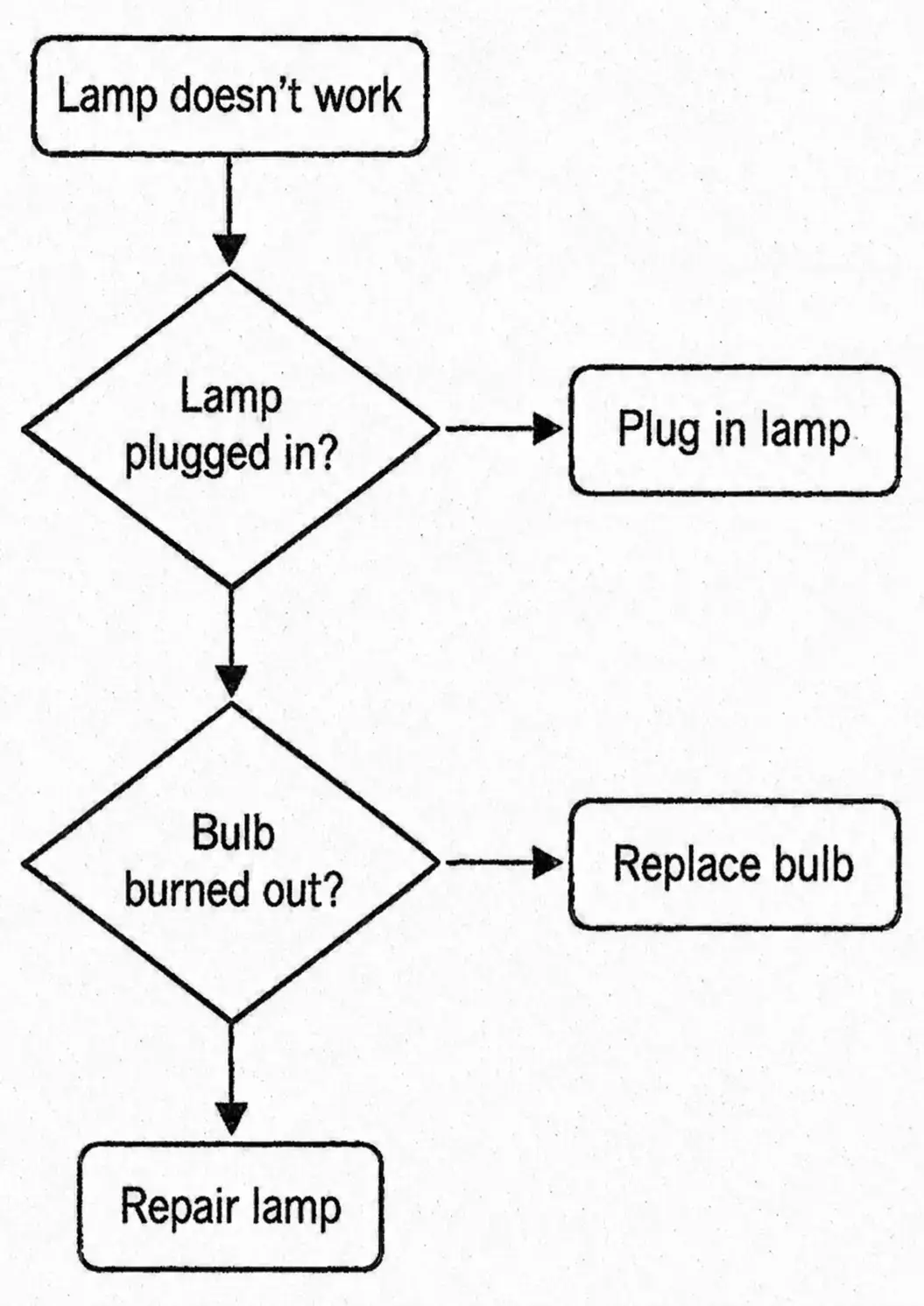
Static pixels, hard to update
After
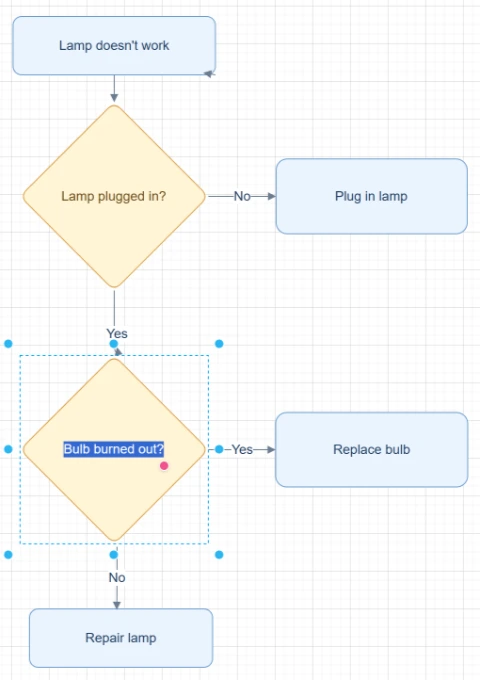
Editable objects you can review
Best for clear diagrams with visible labels, boxes, and arrows. Review blurry text or dense layouts before export.
Convert to FlowchartStart with the source file, let AI rebuild the visible structure, then review the editable result on canvas.
Use a PDF process document, SOP, workflow page, or a clear scanned page image.
ChatFlowchart reads available text and reconstructs the visible process structure as editable flowchart objects.
Open the editable flowchart canvas, review labels and arrows, then export the cleaned result.
Editable result
ChatFlowchart rebuilds the visible diagram as editable diagram objects, so the output can be reviewed and refined instead of staying locked inside a flat image.
Review and edit the visible text labels after the diagram is rebuilt.
Move, resize, add, or remove process boxes, decision nodes, and other diagram elements.
Reconnect arrows, adjust flow direction, and fix unclear branches when needed.
Clean up spacing, alignment, grouping, and reading order on the editable canvas.
Apply sketch or modern styling before exporting the final diagram.
Use cases
Each converter page focuses on a specific output goal, so you can start with the format or workflow you need.
Recover operating procedures from static PDFs so teams can update the process again.
Convert process pages from manuals into editable diagrams for lessons and onboarding.
Rebuild approval, review, or escalation flows from PDF documents.
Turn PDF slide diagrams into editable flowcharts instead of redrawing each step.
Convert clear scanned PDF pages into editable flowchart drafts when the text and arrows are readable.
Details
A PDF to flowchart converter helps when your process is locked inside a PDF document, SOP, workflow page, scanned process chart, or exported PDF diagram. ChatFlowchart rebuilds the process as editable diagram objects.
The result is not just extracted text. It is a structured flowchart draft that can be reviewed, edited, and exported from the canvas.
Text-based PDFs may provide readable text that can guide the flowchart structure. Scanned or image-style PDFs depend on visual clarity, so a clean page crop or screenshot often produces a better first draft.
For complex or dense PDFs, convert one process or one diagram page at a time. Review labels, arrows, and branch order before using the diagram in production documentation.
Results and quality
Text-based PDFs can provide readable text for building the flowchart structure. Scanned PDFs are processed visually, so clear page quality, readable labels, and visible arrows will produce better results.
Export availability follows the current ChatFlowchart canvas export options.
Continue from the converted diagram without rebuilding the file.
Continue refining the rebuilt diagram with manual edits or AI chat.
Export the finished diagram as PNG, SVG, PDF, Draw.io, Mermaid, or a shareable link when available.
Ask ChatFlowchart to rename labels, adjust steps, clean up layout, or correct arrows.
Mark whether the result looks good or needs cleanup so weak inputs are easier to diagnose.
FAQ
Upload a PDF process document, workflow page, SOP, or diagram and rebuild the process on canvas.