Tools
AI diagram conversion tools
Convert images, PDFs, screenshots, whiteboards, and diagram files into editable flowcharts, Draw.io workflows, Mermaid code, and Excalidraw-style canvases.
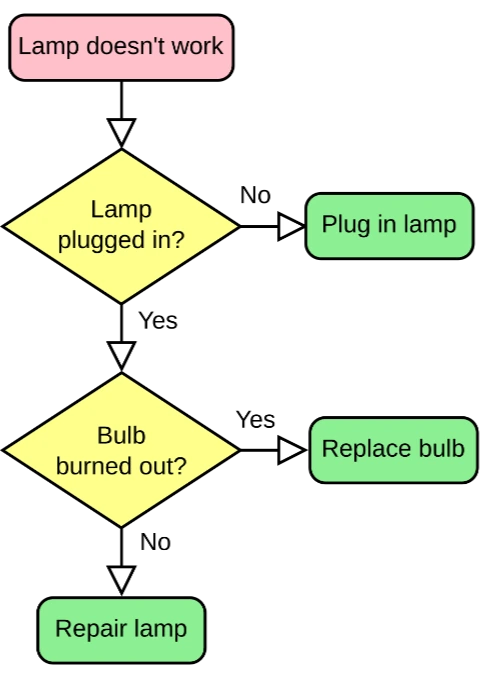
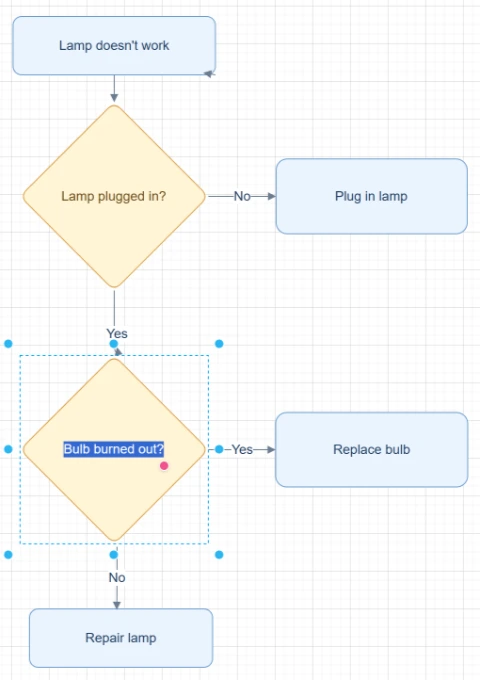
Featured converters
Start with the highest-intent converters for rebuilding editable diagrams from images, PDFs, and mixed sources.
Bild in Flussdiagramm umwandeln
Lade einen Screenshot, ein Whiteboard-Foto oder ein altes Flussdiagramm-Bild hoch und erstelle daraus ein editierbares Flussdiagramm, das du bereinigen, verfeinern und exportieren kannst.
Bild in bearbeitbares Diagramm umwandeln
Lade ein statisches Diagramm-Bild, eine PDF-Seite, einen Screenshot, ein Whiteboard-Foto oder ein altes Flussdiagramm hoch und baue sichtbare Texte, Formen, Pfeile und Layouts als bearbeitbare Diagramm-Objekte neu auf.
Bild zu Draw.io Konverter
Lade ein PNG, JPG, einen Screenshot, ein Whiteboard-Foto oder ein exportiertes Diagrammbild hoch und rekonstruiere daraus ein bearbeitbares Draw.io-kompatibles Diagramm.
Bild zu Mermaid Converter
Lade einen Flowchart-Screenshot, ein Diagrammbild oder eine PDF-Seite hoch und wandle die sichtbare Struktur in editierbaren Mermaid Code um, den du prüfen, anpassen und in Dokumentationen verwenden kannst.
Input sources
Pick the source format that matches the file you already have, from screenshots and whiteboards to SOPs and compressed images.
Screenshot zu Flussdiagramm Konverter
Lade einen Screenshot eines Workflows, App-Flows, Folienprozesses, SOPs oder Dokumentdiagramms hoch und baue ihn als bearbeitbares Flussdiagramm neu auf.
Whiteboard zu Flussdiagramm Konverter
Lade ein Whiteboard-Foto aus einem Meeting, Workshop, Brainstorming oder einer Prozessmapping-Session hoch und erstelle daraus einen bearbeitbaren Flussdiagramm-Entwurf.
Handgezeichnetes Flussdiagramm digitalisieren
Lade ein handgezeichnetes Flussdiagramm, eine Papierskizze, ein Notizbuch-Diagramm, einen Scan oder eine Tablet-Zeichnung hoch und erhalte ein bearbeitbares digitales Flussdiagramm.
SOP to Flowchart Converter
Upload an SOP PDF, procedure document, work instruction screenshot, or process text. ChatFlowchart turns steps, roles, decision points, handoffs, approvals, and exception paths into an editable flowchart draft.
PNG to Draw.io Converter
Upload a PNG diagram export, transparent PNG, high-resolution screenshot, or archived process map. ChatFlowchart reconstructs the visible structure as an editable Draw.io-compatible draft.
JPG to Draw.io Converter
Upload a JPG or JPEG diagram image, email attachment, phone photo, or compressed screenshot. ChatFlowchart reconstructs the visible structure as an editable Draw.io-compatible draft.
Flowchart Image to Draw.io Converter
Upload a static flowchart image, exported flowchart, archived process map, or shared screenshot. ChatFlowchart reconstructs the visible steps, decisions, branches, and connectors as an editable Draw.io-compatible draft.
Screenshot to Draw.io Converter
Upload a diagram screenshot from docs, tickets, slides, websites, or product specs. ChatFlowchart reconstructs the visible structure as an editable Draw.io-compatible draft.
Export formats
Open format-specific workflows when your final diagram needs to fit Draw.io, Mermaid, or Excalidraw-style editing.
Bild-zu-Excalidraw-Konverter
Lade eine Skizze, ein Whiteboard-Foto, einen Screenshot oder ein Flussdiagramm-Bild hoch und lasse die sichtbare Struktur als editierbares Diagramm im Excalidraw-Stil neu aufbauen.
PDF to Mermaid Converter
Upload a PDF page with a flowchart, process diagram, or workflow diagram. ChatFlowchart converts the visible structure into an editable Mermaid code draft for Markdown, GitHub, README files, and technical docs.
PDF zu Flussdiagramm Konverter
Lade ein PDF-Prozessdokument, eine SOP, eine Workflow-Seite oder ein PDF-Diagramm hoch und verwandle es in eine bearbeitbare Flussdiagramm-Leinwand.
PDF in Draw.io umwandeln
Lade ein PDF-Diagramm hoch und baue sichtbare Kästen, Beschriftungen, Verbindungen und Layouts als editierbares, Draw.io-kompatibles Diagramm neu auf.
Start with a clear source file, then refine the editable result.
Upload an image, screenshot, whiteboard photo, or PDF page and move into the canvas with the right converter context already selected.