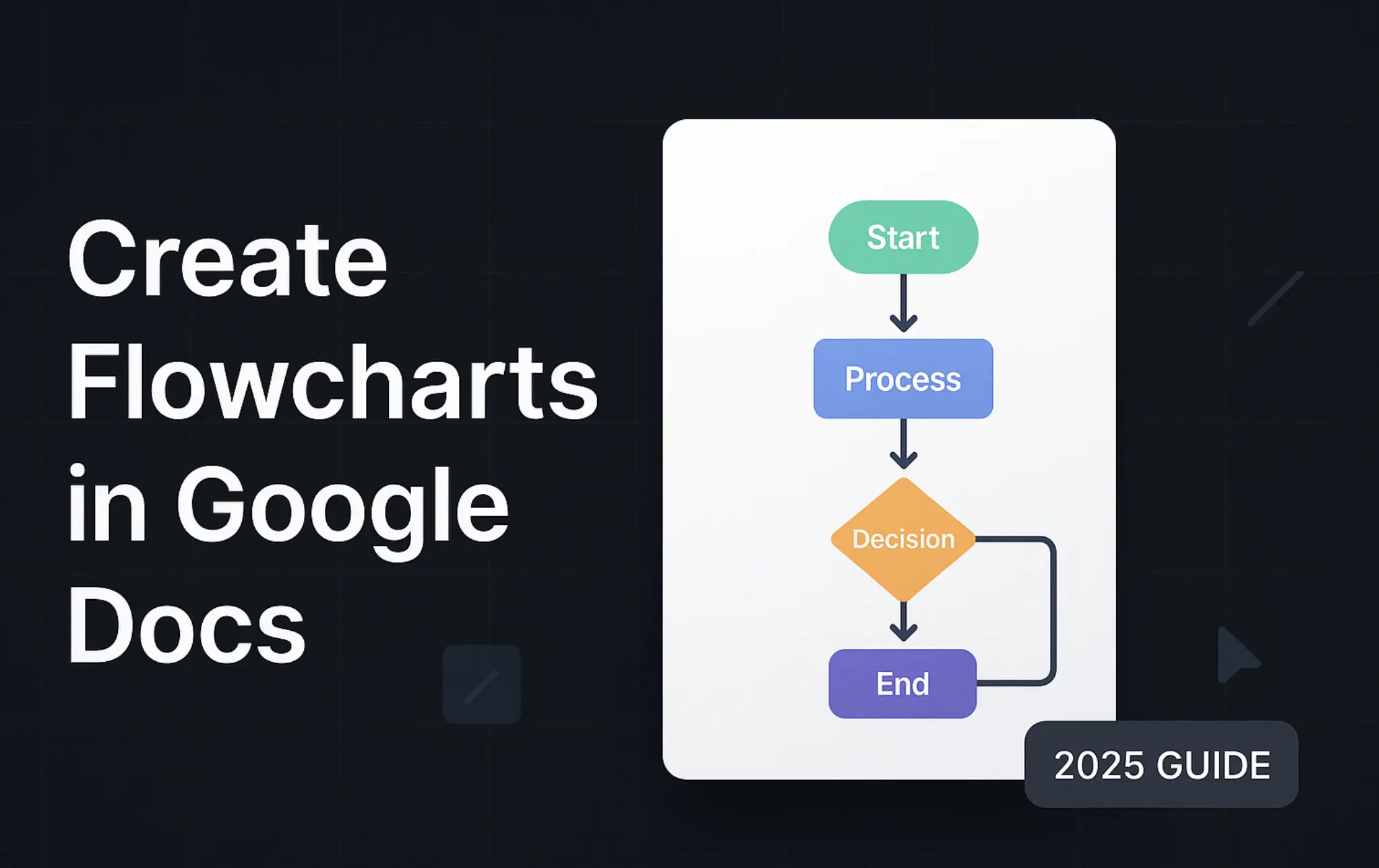
How to Make a Flowchart in Google Docs
If you want to make a flowchart in Google Docs, you have three reliable options:
- Make a flowchart in Google Docs with built-in Drawings (shapes & connectors)
- Make a flowchart in Google Docs by inserting a linked Google Drawings file (update from source)
- Make a flowchart in Google Docs using add-ons (Lucidchart, diagrams.net/draw.io)
This step-by-step guide shows each method and when to use it. All instructions are verified against Google Help pages.
Key phrase focus: how to make a flowchart in Google Docs, create a flowchart in Google Docs, Google Docs flowchart, Google Drawings flowchart, Google Docs shapes and connectors
Option 1 — How to make a flowchart in Google Docs using built-in Drawings
Best for: simple flowcharts inside a Doc page without external tools.
Google references
- Docs Editors Help — Learn how to use drawings & markups: https://support.google.com/docs/answer/179740?hl=en
Steps
- Insert a new Drawing dialog
- Docs > Insert > Drawing > New
- Add flowchart shapes
- In the Drawing toolbar, click Shape > Shapes > pick Flowchart shapes (Terminator, Process, Decision, Data)
- Click to place and type your step text
- Connect shapes correctly
- Click Line > choose a Connector (Arrow, Elbow connector, or Curve)
- Drag from a shape edge until you see connection points; connect to the next shape
- Style arrowheads/line weight via the Line formatting controls
- Align and tidy up
- Use Arrange > Align and distribute to keep spacing consistent
- Use Fill color and Border color to establish a visual system (e.g., Decisions as diamonds with a distinct color)
- Save and edit later
- Click Save and Close to insert the drawing in your Doc
- Double-click the drawing to re-open and edit
Pros
- Native and quick; no add-ons
- Connectors anchor to shapes so your flowchart stays connected while moving shapes
Cons
- Manual layout; limited auto-routing for complex flows
- For large diagrams, editing inside the small dialog can feel constrained
Option 2 — How to make a flowchart in Google Docs via linked Google Drawings (update from source)
Best for: maintainable or larger flowcharts with the ability to refresh updates from source.
What it is
- Create your flowchart in Google Drawings (standalone)
- In Docs, Insert > Drawing > From Drive to place a linked version; later edits in Drawings can be pulled into Docs with Update
Google references
- Docs Editors Help — Learn how to use drawings & markups (From Drive and link to source are documented): https://support.google.com/docs/answer/179740?hl=en
Steps
- Build your flowchart in Google Drawings
- Use shapes, elbow connectors, and formatting in a full-size canvas
- Insert the linked drawing into Google Docs
- Docs > Insert > Drawing > From Drive > pick your drawing, and keep it linked
- Update from source when your flowchart changes
- Click the drawing in Docs; if updates exist, click Update to refresh
Pros
- Full-size canvas for easier editing
- Linked updates keep your Doc in sync with the source drawing
Cons
- Requires a separate Google Drawings file
- Linked objects rely on Drive access; collaborators need permissions to edit the source
Option 3 — How to make a flowchart in Google Docs with add-ons (Lucidchart, diagrams.net/draw.io)
Best for: complex flowcharts, auto‑layout, collaboration, export to PNG/SVG/PDF.
What you can use
- Lucidchart Diagrams add-on: insert and sync diagrams into Docs
- diagrams.net (draw.io) add-on: create and insert diagrams
Generic steps
- Install the add-on from Google Workspace Marketplace
- Open the add-on sidebar in Docs, select an existing diagram or create one
- Insert the diagram image into your Doc
Pros
- Better auto-routing and diagramming features
- Robust export options and collaboration
Cons
- Some add-ons require external accounts or paid plans for advanced features
- Inserted content is often an image snapshot (refresh depends on the add-on)
Which Google Docs flowchart method should you choose for making a flowchart in Google Docs?
- “I need a quick flowchart in Google Docs”: choose built-in Drawing
- “I need maintainability and easy updates”: choose Linked Google Drawings
- “I need complex layouts and exports”: choose Add-ons (Lucidchart, diagrams.net)
Practical examples
Create a basic Google Docs flowchart via Drawing
- Insert > Drawing > New
- Add Shapes: Start (Terminator) → Process → Decision (diamond)
- Use Elbow connector lines to branch Yes/No to next steps
- Save and Close; double-click later to edit
Insert a linked Google Drawings flowchart into Docs
- Create a flowchart in Google Drawings (Drive > New > More > Google Drawings)
- In Docs: Insert > Drawing > From Drive; pick your drawing and keep it linked
- After editing the source drawing, click Update in Docs to refresh
Use an add-on (generic)
- In Docs, Extensions > Add-ons > Get add-ons; search “Lucidchart” or “draw.io/diagrams.net”
- Launch the add-on, create/select your flowchart, and Insert
FAQ: Google Docs flowcharts (verified)
-
Can I connect shapes properly in Google Docs?
- Yes. In the Drawing dialog, use connector lines (Arrow/Elbow/Curve) so lines anchor to shapes. Source: Google Help (Drawings in Docs)
-
Can I keep a flowchart updated across documents?
- Yes. Build it in Google Drawings and insert it as a linked drawing in Docs. Click Update to pull latest changes. Source: Google Help (Insert from Drive)
-
What if I need advanced diagram features?
- Use add-ons like Lucidchart or diagrams.net for auto‑layout, rich export, and collaboration. Insert the result into your Doc.
Troubleshooting: Google Docs flowchart issues
-
Connectors don’t stick to shapes
- Use connector lines (Arrow/Elbow/Curve) from the Line menu so endpoints snap to shape anchors. Avoid plain lines when building a flowchart in Google Docs.
-
Canvas feels too small for complex flowcharts in Google Docs
- Build the diagram in standalone Google Drawings and insert it as a linked drawing (From Drive). Click Update in Docs when the source changes.
-
Add-ons content won’t refresh
- Many add-ons insert static images. Check if the add-on supports refresh/sync; otherwise, prefer the linked Google Drawings method for maintainability.
-
Collaborators can’t edit the source flowchart
- Linked drawings require Drive permissions. Share the Google Drawings file with the right access level to enable updates.
Conclusion: The best way to make a flowchart in Google Docs
For small and quick tasks, use Drawings directly inside Google Docs. For maintainability and larger diagrams, build in Google Drawings and insert as a linked drawing so you can update from source. If you need robust diagramming, use an add-on and insert the diagram into your Doc. Either way, your Google Docs flowchart stays close to project context and is easy to share.
References
- Google Docs Editors Help — Learn how to use drawings & markups: https://support.google.com/docs/answer/179740?hl=en
- Google Docs Editors Help — Insert and arrange text, shapes, diagrams, and lines (Slides reference for shapes/connectors UI similarity): https://support.google.com/docs/answer/1696521?hl=en
- Lucidchart Diagrams (Workspace Marketplace): https://workspace.google.com/marketplace/app/lucidchart_diagrams/700168918607
- diagrams.net for Docs (Workspace Marketplace): https://workspace.google.com/marketplace/app/drawio_diagrams/176047306217
Author

Categories
More Posts
Algorithm and Flowchart: Definitions, Symbols, Examples (2026)
Learn what algorithms and flowcharts are, how they differ, standard flowchart symbols, pseudocode vs flowchart, and step-by-step examples with Mermaid flowcharts.
How to Make a Flowchart in Notion (2026 Guide)
Learn how to make a flowchart in Notion with Mermaid code blocks and embedded diagram tools (Miro, Lucidchart, diagrams.net). A verified, step-by-step Notion flowchart tutorial.

Problem-Solving Flowchart: DIY Guide + Free Templates 2026
Learn how to create problem-solving flowcharts with our step-by-step DIY guide. Includes symbols, templates & examples. Try FlowchartAi daily for free!